Google Ads script:
Account metrics out of limits alerts
A simple to use, but very powerful script with which you can monitor whether metrics are within a permitted range for a freely definable period of time.
| Alert | Monitoring | Save costs | Read-only |
 |
 |
 |
 |
Example alert email
In this alarm email, the problem was recognized that the costs of the last 2 days were more than 30% higher than in the comparison period (previous period). Diagrams with (configurable) metrics are always displayed below the detected problems.
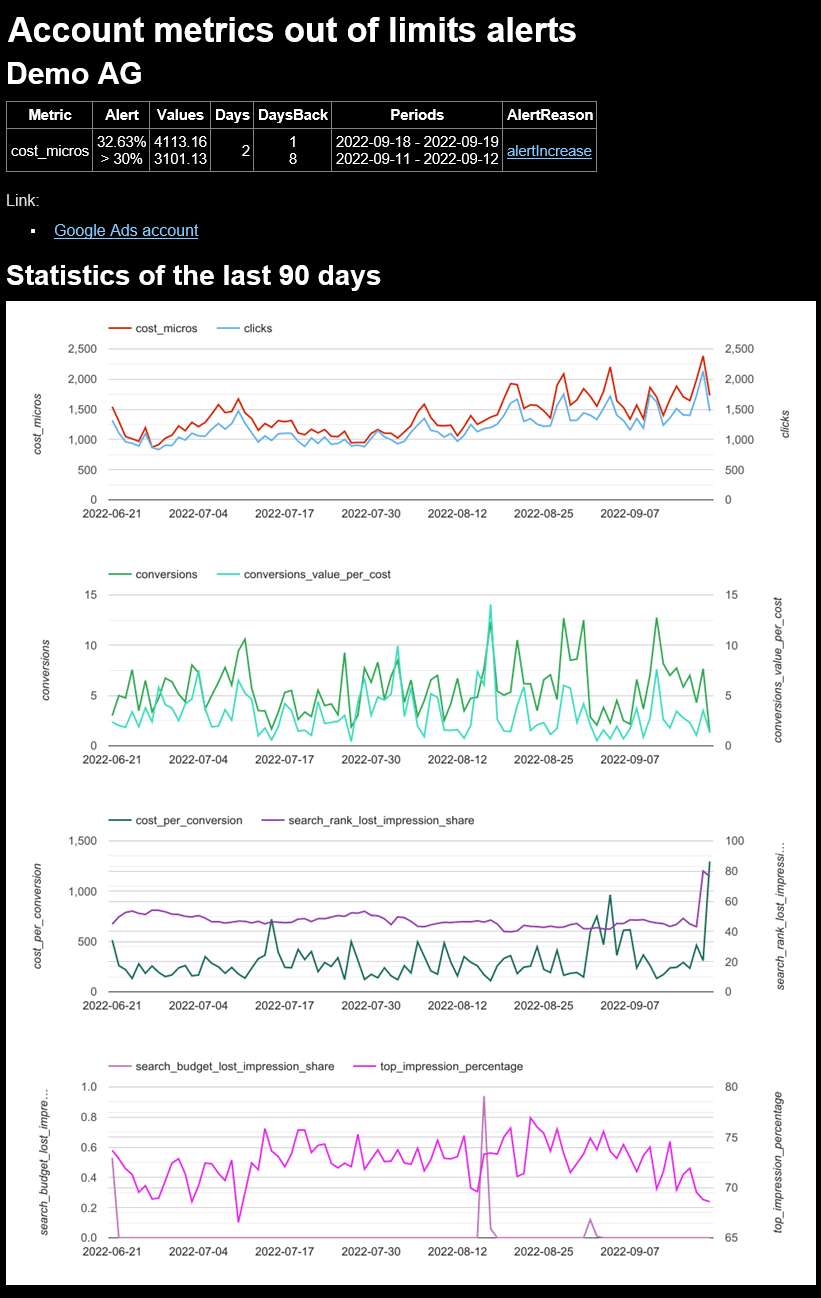
Click on "alerteIncrease" to go directly to the "alerteIncrease" parameter in the config sheet of the Account metrics out of limits alerts, so that you can immediately adjust the "30%" for alerteIncrease or other parameters. By clicking on "Google Ads Account" you are immediately in the Google Ads account of Demo AG. cost_micros is Google's metric name for the costs.
Example configuration
Here the Google Ads account of

Configuration
It is advisable to monitor several key figures for each account. If several unauthorized deviations are detected, you will receive all of them together in one email.
Link to the demo configuration sheet for Account metrics out of limits alerts.
Configuration parameters
| Parameter | Description |
|---|---|
| metricName | If you click on the small arrow in the cell, you can select the most popular metrics
(Costs, impressions, costs per conversion, average costs, clicks, conversions, conversions by time, conversion value by time)
directly. But other metrics are also possible.
|
| daysBackRecent | 1 = analyze the period from yesterday, 0 = from today |
| daysBackCompareTo | 7 = compare with the metrics of a week ago. |
| numberOfDays | 1 = only consider the metrics for one day. The value must be less than or equal to daysBackCompareTo. |
| alertLessThan | Absolute value. An alarm email is sent if the value falls below this value. |
| alertGreaterThan | the same for greater |
| alertDecrease | Compares the "recent" period with "compareTo" over the defined number of days. If "recent" deviates downwards by more than alertDecrease %, you will receive an alert email. |
| alertIncrease | the same for increase |
| #hours | Tip: If metrics are to be checked from yesterday, set #hours=5,6,7 so that the execution does not take place directly after midnight, when some metrics are not yet provided by Google. |
Parameters that apply to all scripts
Note on the timeliness of metrics in Google Ads
The problem
Google sometimes provides metrics (especially conversions) step by step with a significant delay. This means that if you retrieve the metrics for a specific date every day, the metrics will gradually approach the actual value each day. The extent of this effect depends on the account and the metric. In our experience, if you retrieve yesterday's cost data at 5 a.m., you will receive a value that will not change significantly. If, on the other hand, you retrieve conversion data, you may see over 40% fewer conversions than actually occurred. It takes a few days to get reliable conversion data from Google.
According to Google, conversion data (including time-based data) can change significantly within 7 days, change slightly for up to 30 days, and should not change after 30 days.
The solutions
Do not retrieve yesterday's data before 5 a.m.
It makes sense to check a lot of data from yesterday so that you can react quickly to any problems. It is recommended to enter 5, 6, 7, and 8 in the #hours column so that data from the previous day is only read from 5 a.m. onwards. This gives Google at least a few hours to update data from the previous day. (The additional hours are just a precaution. If there are any problems with script execution, it will be tried again an hour later.)
Take incompleteness into account
When checking metrics for yesterday or the last few days, you must take into account that these may not yet be complete. When checking metrics for the last few days, you should therefore primarily check extreme values and, for example, take into account that only half of the conversions from the previous day may already be included in Google's data. A standard check for all accounts is “at least one impression yesterday”.
Multiple checks for the same metrics
It makes sense to check the previous day to see if conversions_by_conversion_date is greater than 0 (or a value 50% below the minimum) in order to receive an alert in case of tracking failures. For a further test, configure daysBackRecent=7 to check the metrics from a week ago to see if they are within the normal range. You can decide whether to check only a single day with a large tolerance or whether it is better to check a period of several days so that outliers on individual days do not lead to unnecessary alerts.
Download Google Ads script Account metrics out of limits alerts
Please log in or register in the Ads Scripts Store first to download the script (why is this necessary?).